Basics Channels

Stereo to Mono

Fewer channels. Clearer focus.

Stereo to Mono in jd.Edit

What the effect is for

Many speech recordings are stereo in name only: a USB interface delivers the microphone on the left channel and silence on the right, or two microphones sit on two channels although only one is needed. Stereo to Mono turns that into a clean mono track.

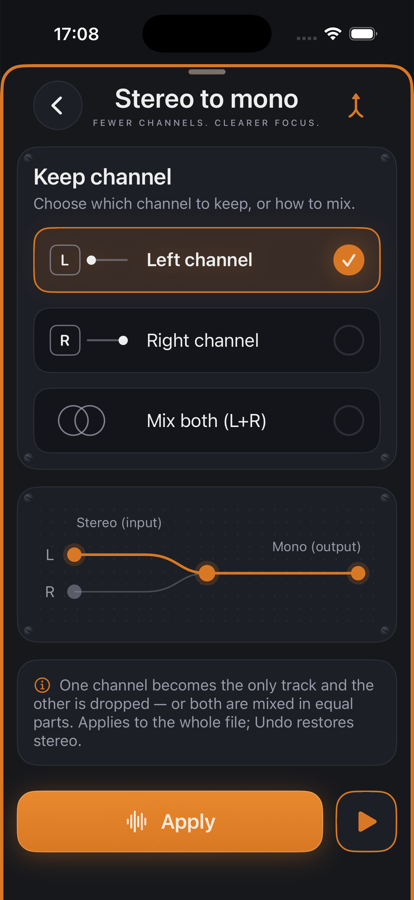
Three ways: Left or Right keep exactly one channel, Mix sums both in equal parts — without clipping, because the sum is halved.

Benefits

  • ✓Half the file size for WAV and MP3, since only one channel is stored.
  • ✓No lopsided sound on headphones when the microphone was on one side only.
  • ✓The flow diagram shows before applying which channel goes where.
  • ✓Preview plays the range in mono; every switch is audible immediately.

Included for free

When it makes sense

USB interface with one microphone

Keep channel 1, the empty channel 2 goes away.

Podcast download

A stereo music bed is not needed, the voice is fine in mono — smaller file.

Two microphones, one track

Mix combines both speakers when no stereo image is wanted.

Controls

SourceLeft, Right or Mix (L+R)/2.

Tips

💡Check the waveform before mixing: if the right channel is silent, Left is the better choice — Mix would halve the level.

Chain order: High-pass → Leveler → Compressor → De-Esser → SoundsBetter → Limiter. The effects list can be reordered with “Reorder”.

Want to try it?

jd.Edit is free; every Pro feature can be used twenty times at no cost.

On the App Store